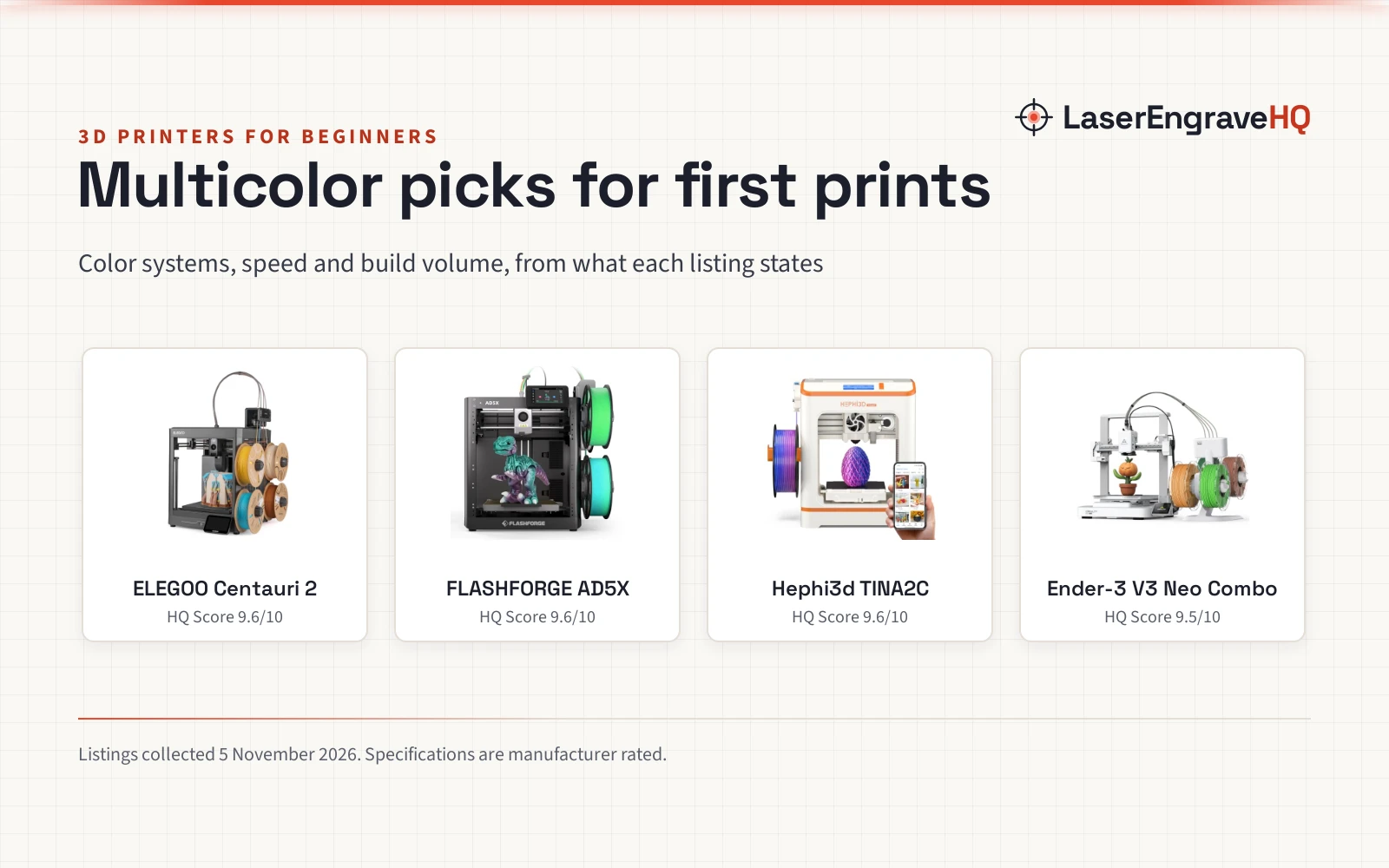
Multi Color 3D Printer for Beginners: A Practical Guide
A step-by-step guide to multi-color 3D printing for beginners: how it works, what to look for in a machine, and how to set up safely.

On this page
Top picks at a glance
As an Amazon Associate I earn from qualifying purchases.
- 1
 FLASHFORGE AD5X Multi-Material 3D Printer 4-Color Printing9.6/10View on Amazon
- 2
 Anycubic Kobra X Multicolor 3D Printer9.5/10View on Amazon
- 3
 SUNLU Silk PLA+ Filament 1.75mm Multicolor 250gx49.6/10View on Amazon
A multi color 3D printer for beginners is a printer that builds a model in many colors in the same print job, without painting or swapping filament by hand. It lays down plastic layer by layer, changing color as it goes, so the model leaves the bed already colored. This guide explains how that color change works, what to look for in a machine, and how to set up a safe workspace.
LaserEngraveHQ earns a commission from purchases made through these links, at no extra cost to you. Read our affiliate disclosure.
We do not have verified figures for multi-color 3D printers, so this guide gives no speeds, sizes or prices. Use the maker’s own listing for the numbers that matter to your project.
How multi-color printing works
Color in a 3D print comes from the filament, the plastic thread the printer melts and lays down. A multi-color printer changes that filament during a print, or runs a nozzle for each color, so the model leaves the bed already colored. Some machines pause and swap filament on their own, some push filament through a palette that joins colors before the nozzle, and some carry a separate nozzle for each color.
The palette and the nozzle systems print with less waiting, while a swap system is simpler to run and easier to learn. On a machine with one nozzle, changing color wastes some filament, because the nozzle must clear the old color before the new color starts. That waste, called purge, lands in a small tower or a bin beside the model. A machine with a nozzle for each color needs no purge of the nozzle at a change, because each color stays in its own nozzle. When you compare machines, look at how the maker handles purge.
Pick the color system that fits your projects
Start from the models you want to print. A figurine with a colored cap and coat needs a system that can change color mid-print, while a sign with lettering in a different color needs clean edges where the colors meet. A swap system suits simple color changes, a palette suits models with many colors in the same layer, and a nozzle for each color suits side-by-side colors.
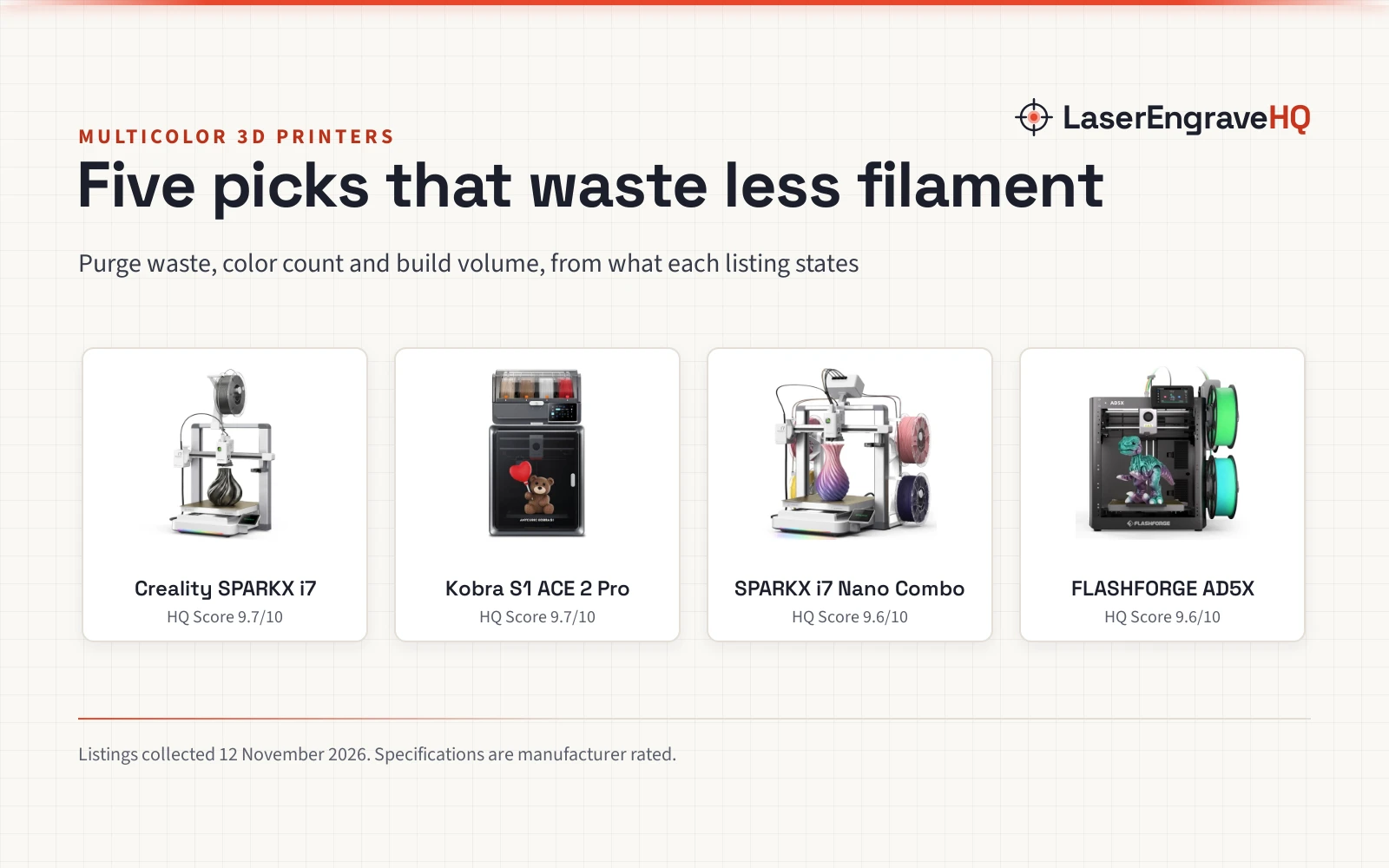
A palette joins colors before the nozzle, so the printer still runs one nozzle and the spliced transition between colors still has to be cleared before the new color prints clean. Our best multi color 3D printer with least waste guide compares machines on that point. If you print mostly in a plain color with an accent here and there, a simple swap system may be enough. Compare machines in our best multicolor 3D printer guide before you buy.
Check the build area and the materials
The build area is the space the printer can use, and it decides how large a model you can print without splitting it into parts. Check the build area the maker lists against the models you plan to print. A small build area is fine for figurines, tags and small replacement parts, while a large build area suits helmets, vases and long signs.
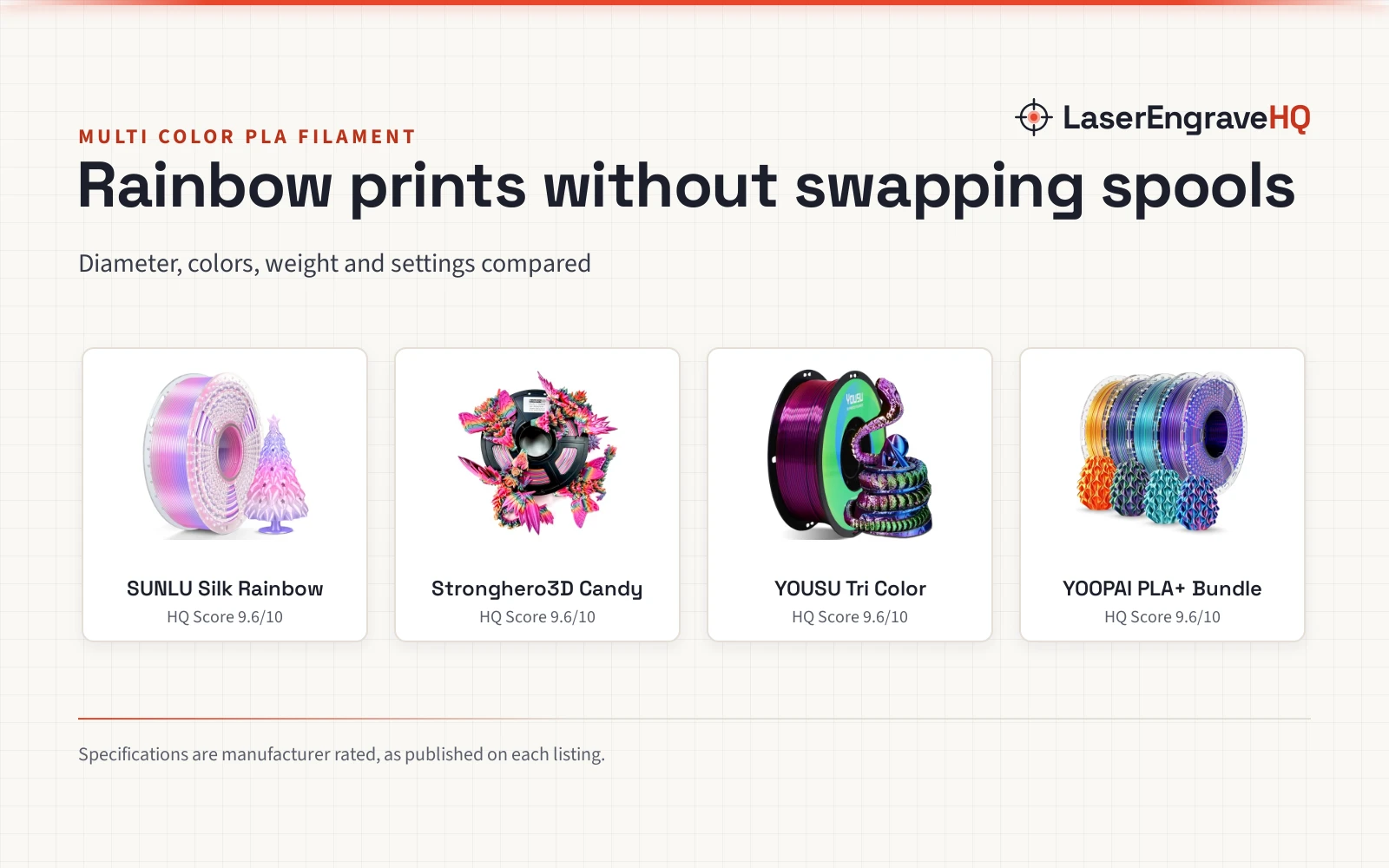
Material matters as much as size. PLA is the usual starting filament: it prints at lower heat, sticks well to the bed and comes in many colors. PETG is tougher and handles warmth better, so it suits parts that will live outdoors or near heat. Start with PLA while you learn, then try PETG when a project needs more strength. Our best FDM 3D printing filament guide covers filaments for FDM printers, and best multicolor PLA filament for figurines looks at colored PLA for display pieces.
Set up a safe workspace
A 3D printer needs a steady surface and a clear path for the print head. Put the printer on a flat, stable table away from drafts, with space for the spool and the purge tower. Keep the room ventilated, and keep the printer away from curtains, bedding and clutter that could catch on a hot nozzle.
Filament hates damp air. Store spools in a dry box or a sealed bag with desiccant, and keep them out of sunlight. Our how to store 3D filament guide covers storage in detail. Keep fingers away from the nozzle and the moving print head while a job runs, and let a finished print cool on the bed before you lift it off.
Slice and print a model
Slicing turns a model file into the layers the printer understands. The slicer lets you assign a color to each part of the model, add supports for overhangs and set the purge between colors. Start with the slicer profile the maker ships with the printer, and change settings slowly so you can see what each change does.
Watch the early layers as they go down. If the plastic does not stick to the bed, stop the print, clean the bed and check the bed level. A model that sticks well early usually finishes well, while a model that lifts at the edges will warp as it cools. Give the printer time to finish, and do not move the printer while it runs; if it has an enclosure, leave it closed while it runs.
Fix common beginner problems
Stringing leaves thin threads of plastic between parts of a model. It usually means the nozzle is too hot or the filament is damp, so lower the heat a little or dry the spool and try again. Color bleed happens when the old color is still in the nozzle as the new color starts; a longer purge or a purge tower helps. If a model will not stick to the bed, clean the bed, check the level and try a brim or a raft. If filament tangles, unwind the loose loops and rewind it neatly. Filament can snap inside the tube as well; see our how to remove filament from a 3D printer guide for how to clear it.
Common mistakes to avoid
- Buying the most colors before you know what you will print.
- Skipping the purge tower to save filament, then finding the old color in the new parts.
- Printing with damp filament and blaming the machine for the stringing.
- Leaving the printer in a drafty room and wondering why models lift off the bed.
- Changing many settings together, so the cause of a bad print stays hidden.
Multi color 3D printer for beginners: the short version
- Learn how color changes work: swap, palette or a nozzle for each color.
- Pick a color system that fits the models you want to print.
- Check the build area and start with PLA.
- Set up ventilation, a steady surface and dry filament storage.
- Slice a model, assign colors and watch the early layers.
- Fix stringing, color bleed and poor adhesion a step at a time.
FAQ: lasers and CNC
What is a multi color 3D printer?
A 3D printer that prints a model in many colors in the same print job, by changing filament or by using a nozzle for each color, so the model leaves the bed already colored.
Is a multi color 3D printer good for beginners?
Yes, if you start with simple models and a small set of colors. Learn the printer with plain PLA, then add color changes after the basics feel familiar.
What filament should a beginner use?
PLA is the usual starting filament: it prints at lower heat, sticks well to the bed and comes in many colors. PETG suits tougher parts that need more strength.
Why do multi-color prints waste filament?
On a machine with one nozzle, the nozzle must clear the old color before the new color starts, and that purge lands in a tower or a bin beside the model. A machine with a nozzle for each color avoids that purge, because each color stays in its own nozzle.
Can I print a multi-color model on a regular 3D printer?
Some regular printers can pause so you can swap filament by hand, but the color changes stay at layer boundaries and the process takes more attention. A printer built for color changes handles them on its own.
How do I keep filament dry?
Store spools in a dry box or a sealed bag with desiccant, away from sunlight and damp air. Our how to store 3D filament guide covers storage in detail.
Related: the 3D printer hub, best multicolor 3D printer and best FDM 3D printing filament. Also see our resin 3D printer for beginners. Also see our problems with 3D printing.