How to Change 3D Printer Filament
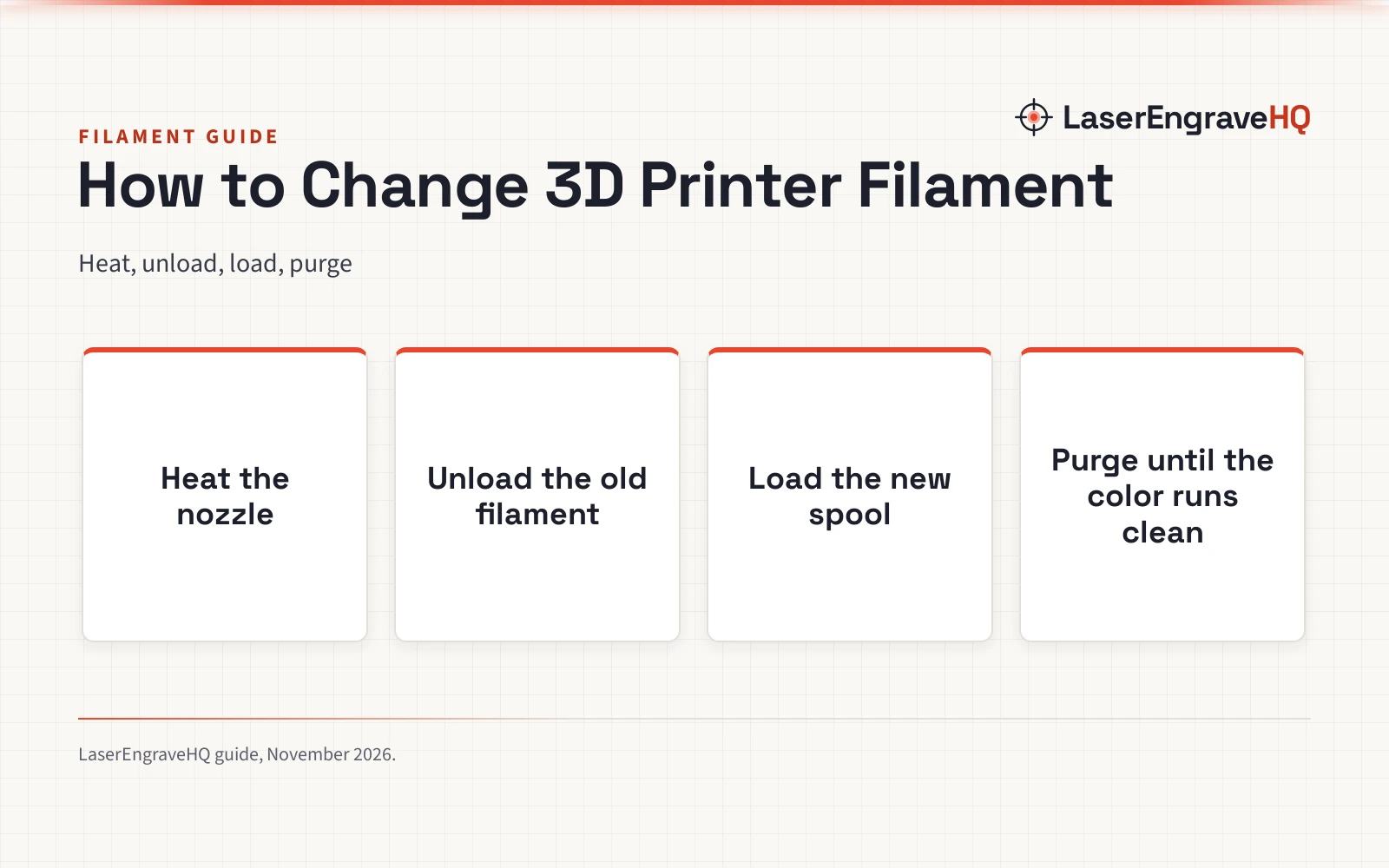
Heat the nozzle, unload the old filament, cut a clean tip, feed the new 1.75mm filament through the extruder and purge until the new color runs clean.

On this page
Top picks at a glance
As an Amazon Associate I earn from qualifying purchases.
- 1
 SUNLU High Speed PLA Filament Bundle9.8/10View on Amazon
- 2
 FLASHFORGE Rapid PLA Filament 1.75mm Ruby Red9.8/10View on Amazon
- 3
 ELEGOO PLA 3D Printer Filament Bundle 4KG Black/White/Dark9.7/10View on Amazon
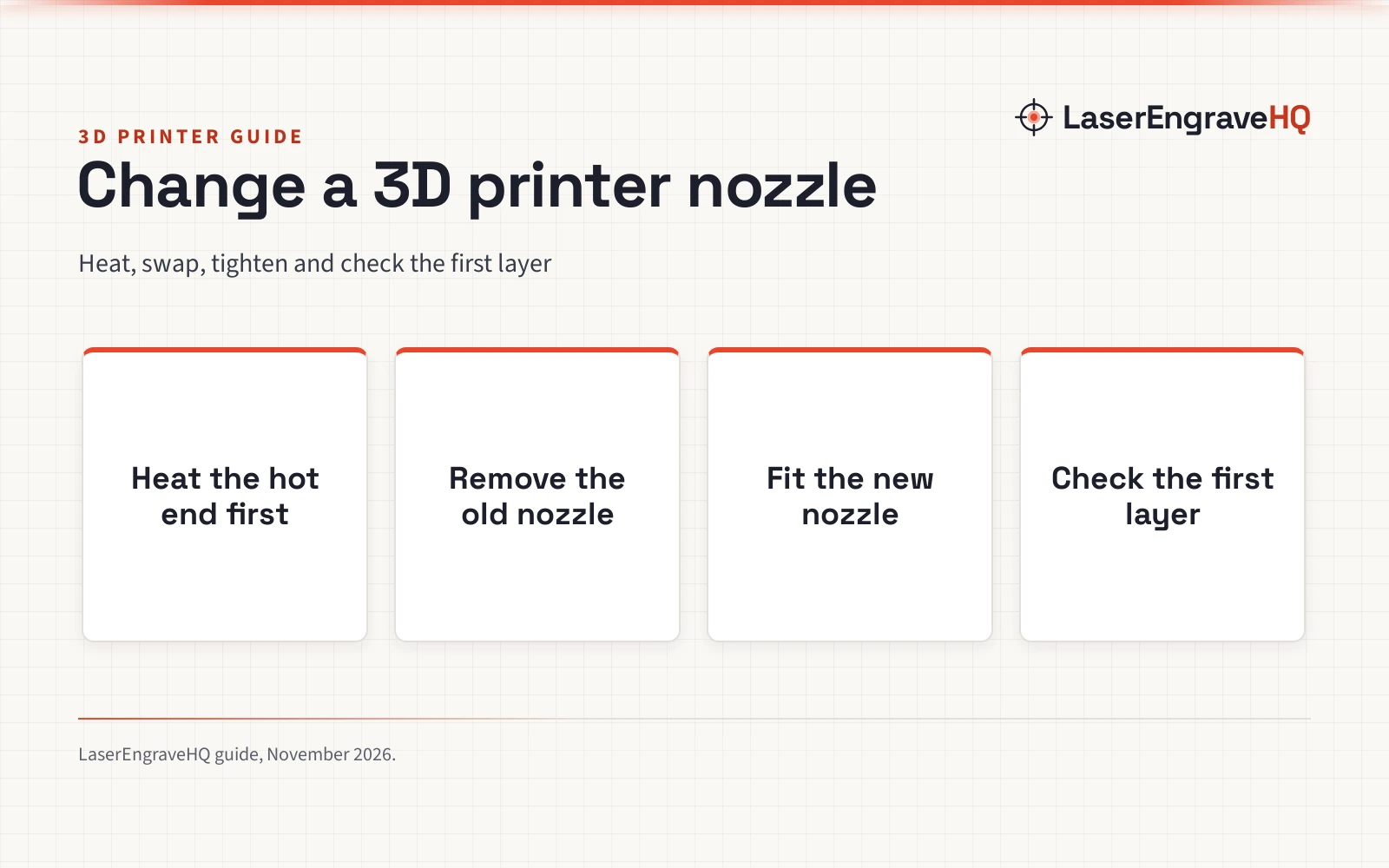
How to change 3d printer filament is a short swap: heat the nozzle, unload the old filament, cut a clean tip on the new filament, feed it through the extruder, and purge until the new color runs clean. The steps below walk through each move in order, with the filament sizes and bed temperatures the makers state.
LaserEngraveHQ earns a commission from purchases made through these links, at no extra cost to you. Read our affiliate disclosure.
The makers state filament sizes and bed temperatures, not nozzle temperatures or change steps. Treat any single temperature figure online as a claim for a specific printer and filament, not a rule for yours.
Step 1: Heat the nozzle
Heat the nozzle to the loading temperature for the filament type you use. Do not guess a number: use the temperature your printer shows for that filament type, and wait until it holds steady before you touch the filament. A cold nozzle grips the filament and snaps it, while a hot nozzle lets it slide out cleanly. Give the nozzle time to reach temperature before you move on.
Step 2: Unload the old filament
Run the printer’s unload or filament change function if it has one, and let the extruder pull the old filament back out. If your printer has no unload function, pull the filament gently once the nozzle is hot. Keep the loose end straight so it does not curl and catch on the way out. Wind the old filament back onto its spool and store it dry, so it stays ready for the next print. See our how to store 3D filament guide for storage.
Step 3: Cut a clean tip and check the diameter
Cut the end of the new filament at an angle so it feeds cleanly into the extruder. A blunt or bent tip catches at the entrance and jams, so trim off any bent or swollen end before you feed it in. Check the diameter before you load it: the KALIDORA bundle (on Amazon) lists 1.75mm filament with ±0.02mm precision, and that diameter fits most 1.75mm direct-drive and Bowden tube printers. A filament that measures off will not feed evenly, so check the spool label first.
Step 4: Load the new spool
Set the spool on the holder so it unwinds freely, then feed the filament into the extruder, through the guide tube if your printer has one. Push it until you feel the extruder gears catch, then let the printer take over. Keep the spool turning freely: a spool that drags makes the extruder skip. Check the spool size against your holder: the KALIDORA bundle packs 16 spools of 0.25kg each, 4kg total. See our filament spool dimensions guide. The maker states the compact 0.25kg spools are not compatible with automatic material systems (AMS/MMU), so load them by hand on a standard holder.
Step 5: Purge until the color runs clean
Run the printer’s load or purge function and watch the filament coming out of the nozzle. Keep purging until the old color is gone and the new color runs clean and straight. Stop when the flow is steady, then wipe the nozzle clean. Skipping the purge leaves the old color in the first part of the next print, so keep going until the strand coming out is the new color only.
Step 6: Set the bed and start the print
Set the bed to the temperature the filament needs and start a small print to check the flow. The KALIDORA listing gives 50-55°C bed temperature for PLA+ and 60-65°C for transparent PETG, to keep the print from losing adhesion. Watch the first layer: if it sticks and the lines look even, the change is done. If the first layer lifts, stop the print and check the bed temperature and the spool before you try again.
Common mistakes to avoid
- Changing filament with a cold nozzle, which snaps the filament inside.
- Feeding a bent or swollen tip into the extruder.
- Letting the loose end curl and tangle on the spool.
- Skipping the purge, so the old color shows in the new print.
- Loading a spool that does not fit the holder or the automatic material system.
How to change 3d printer filament: the short version
- Heat the nozzle to the loading temperature for the filament type.
- Unload the old filament and store it dry.
- Cut a clean tip and check the diameter.
- Load the new spool and feed it into the extruder.
- Purge until the new color runs clean.
- Set the bed temperature and start a small print.
FAQ: lasers and CNC
How do I change filament mid-print?
Pause the print, heat the nozzle, unload the old filament and load the new one the same way, then purge until the new color runs clean and resume. The steps are the same as a change between prints, except the printer holds its place while you swap.
Do I need to heat the nozzle to change filament?
Yes. A hot nozzle lets the filament slide out and in, while a cold nozzle grips it and can snap it. Use the loading temperature for the filament type you use, and wait until it holds steady.
What filament diameter does my printer take?
Most FDM printers take 1.75mm filament. The KALIDORA bundle lists 1.75mm with ±0.02mm precision, and its spools fit most 1.75mm direct-drive and Bowden tube printers. Check your printer manual for the diameter it takes before you order.
How do I keep filament dry between changes?
Store spools dry and sealed. The KALIDORA spools arrive individually vacuum-sealed with fresh desiccant. See our how to store 3D filament guide, and our does PLA filament need to be dried guide if a spool has picked up moisture.
Can I use a 0.25kg spool in an automatic material system?
No. The maker states the compact 0.25kg spools are not compatible with automatic material systems (AMS/MMU). Load them by hand on a standard holder instead.
Related: the 3D printer hub, 3D printer filament types and best FDM 3D printing filament. Also see our how to remove filament from a 3D printer.