How to Make 3D Printer Quieter: Fans, Motors and Enclosures
How to make a 3D printer quieter: find fan, motor and frame noise, then calm the printer with placement, upkeep, settings and enclosure choices.

On this page
Top picks at a glance
As an Amazon Associate I earn from qualifying purchases.
- 1
 SUNLU High Speed PLA Filament Bundle9.8/10View on Amazon
- 2
 FLASHFORGE Rapid PLA Filament 1.75mm Ruby Red9.8/10View on Amazon
- 3
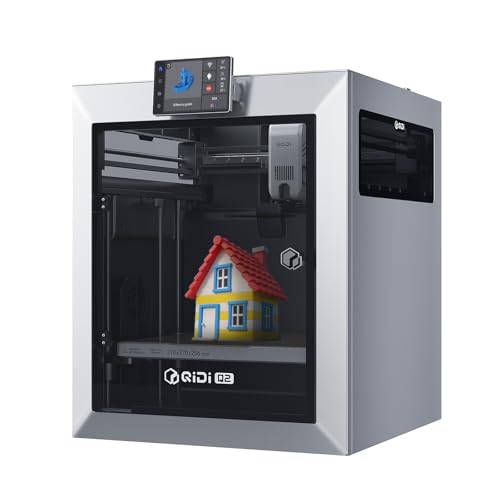 QIDI Q2 3D Printer9.8/10View on Amazon
A printer that hums through the wall while a print runs overnight can turn a spare room into a room you avoid. How to make 3d printer quieter starts with finding where the noise comes from, then calming fans, motors, belts, frame vibration and the surface under the machine. The steps below work from the easiest checks to bigger changes, with no guesswork figures and no parts swaps before you know the source.
LaserEngraveHQ earns a commission from purchases made through these links, at no extra cost to you. Read our affiliate disclosure.
We do not have verified noise measurements for printers, fans or enclosures, so this guide gives no decibel figures and no promised drop in sound. Treat any loudness claim you see online as a story from that setup, not a promise for yours, and judge changes by ear in your own room.
Find where the noise comes from
Listen to the printer while it runs and sort the sound by type. A steady whoosh usually points to fans. A whine that changes pitch as the head moves points to motors and drivers. A rattle or buzz that comes and goes points to a loose part, a belt, a bearing or the surface under the frame. A deep hum through furniture points to vibration passing into the desk or shelf.
Work through the machine in a calm order. Watch and listen with the printer running a familiar print, then pause and check the obvious sources by hand with power off and parts cool. Note where the sound is loudest: near the hotend, near the power supply, along an axis, or through the table. That note decides what to fix. Guessing leads to swapped parts that change nothing. If you are new to enclosed machines, the enclosed 3D printer guide explains what an enclosure does and does not do.
Quiet the fans
Fans move air, and moving air makes sound. Dust on blades, a cracked blade, a loose mount or a wire touching a blade can add a buzz on top of the normal whoosh. With power off, look for dust buildup, loose screws and cables near fan blades. Clean dust with a soft brush and keep blades clear. Check that fan mounts sit flat and that no cable rests against a spinning part.
Fan speed settings in firmware or slicer profiles also change sound. Lower fan speed can calm the whoosh, but cooling still has to suit the filament and the print. Change settings in small steps, print a familiar shape, and watch print quality as well as sound. Follow the maker manual for any fan swap, and contact the maker or a repair shop if wiring or power supply work feels beyond your comfort. For machine choice context, see the 3D printer hub.
Calm motor and belt noise
Motors sing when they work. Bearings add their own sounds when they run dry, and belts add theirs when they run loose or out of line. Check belt tension and pulley alignment by the method in the maker manual for your machine. A belt that is too loose can slap. A belt that is too tight can strain motors and bearings. Follow the manual rather than a generic feel, since frames and belt paths differ.
Keep smooth rods, rails and bearings clean and cared for as the manual describes. Dust and old debris can turn smooth motion into grinding. Driver and motion settings in firmware can also change motor sound. Settings with names tied to quiet operation exist on many machines, and the manual or maker support pages explain what each setting does on your model. Change settings in small steps and keep notes, so you can undo a change that hurts print quality. Keep guards and covers in place as the maker intends.
Stop frame and surface vibration
A printer can be quiet in the air and loud through the furniture. Hard feet on a hollow desk can turn the desk into a drum. Move the printer to a sturdy, level surface and check that all feet touch evenly. Soft pads or a dense mat under the feet can break the path into the desk. Keep the machine away from thin panels and loose shelf boards that buzz along.
Check frame screws and brackets with power off, following the maker manual for torque and order where the manual gives them. Loose frame parts rattle, and a frame that sits twisted can make motion rough. Place the printer where walls and corners do not throw sound back at your chair or bed. A rug, curtains and soft furnishings in the room can soften reflected sound, though they do not fix a loose part or a worn bearing.
Use an enclosure with care
An enclosure puts a box between the printer and the room, and walls block some sound. It also holds heat around the machine and changes how air moves. Follow maker guidance for enclosure use with your printer and filament, and watch print quality and machine behavior after you add walls or a lid. Keep vents and fans clear as the manual describes.
An enclosure helps most with fan whoosh and motor whine that travel through air. It helps less with vibration that travels through the desk, so pair it with a sturdy surface and soft feet. Soft lining inside an enclosure can soak up reflected sound, while hard bare walls can bounce sound around. Keep flammable clutter away from hot parts, keep the workspace tidy, and follow the maker’s guidance on unattended printing.
Slow the print down in settings
Fast moves often make more sound than slow moves. Travel moves, sharp direction changes and high acceleration can add whine and rattle. Slicer settings for speed and acceleration let you trade time for calm. Lower them in small steps for overnight or shared-room prints, then check corners, walls and surface finish on a familiar shape.
Print orientation and support choices can also change sound, since long fast travel across the bed sounds different from short slow moves. Keep a quiet profile saved apart from your everyday profile, with notes on what changed. That way a calm night print does not quietly become your default for every job. For broader machine context, the best 3D printer for beginners with multiple colors guide shows how maker features differ across models.
Common mistakes to avoid
- Swapping fans before you know which fan is loud.
- Turning fan speed down without watching print quality.
- Tightening belts by guess instead of the maker method.
- Putting a printer on a hollow desk and blaming the motors.
- Closing an enclosure and ignoring heat and airflow.
- Changing many settings together, then guessing which change helped.
How to make 3d printer quieter: the short version
- Find the loudest source by listening during a familiar print.
- Clean fans and clear cables with power off.
- Check belts, bearings and frame screws by the maker manual.
- Set the printer on a sturdy surface with soft feet.
- Try calmer speed and fan settings in small steps.
- Add an enclosure only with maker guidance on heat and airflow.
Work through the list in order and stop when the room feels calm enough. Each change teaches you what your machine needed.
FAQ: lasers and CNC
Why does my printer sound louder at night?
The room is quieter at night, so fan whoosh and motor whine stand out more. Hard walls and bare floors also bounce sound around. A sturdy surface, soft feet and calmer speed settings help, and an enclosure can block sound that travels through air.
Will an enclosure make my printer quiet?
An enclosure can soften fan and motor sound that travels through air. It does little for vibration that travels through the desk. It also holds heat, so follow maker guidance for your printer and filament and watch print quality after you close the box.
Should I replace the fans?
Clean and check the fans you have before you swap parts. Dust, loose mounts and cables near blades cause many buzzes. If a fan still sounds rough after cleaning, follow the maker manual for a swap or ask the maker or a repair shop for help.
Does slower printing sound calmer?
Slower moves and gentler direction changes usually sound calmer than fast travel and sharp turns. Lower speed and acceleration in small steps, save a quiet profile, and check print quality on a familiar shape before you trust it overnight.
What upkeep keeps a printer from getting louder?
Keep fans clean, belts checked by the maker method, rods and bearings cared for as the manual describes, and frame screws snug. Dust, dry motion parts and loose hardware turn smooth motion into grinding and rattle over time.
Related: the 3D printer hub, the enclosed 3D printer guide and the best 3D printer for beginners with multiple colors guide.