What Is Shipping Label and What You Need to Print One
A shipping label is the printed slip on a parcel that tells the carrier where it goes, who sent it, and how it should travel.

On this page
A shipping label is the printed slip stuck to the outside of a parcel that tells the carrier where the parcel goes, who sent it, and how it should travel. This guide answers what is shipping label in plain terms, then walks through what goes on a label, what size to use, and how to print it at home. The carrier scans the barcode on the label at points along its route, so the parcel can be sorted, routed and delivered without anyone retyping an address. For a small seller, the label is the link between an order on a screen and a box on a doorstep, and a clear label keeps that link intact.
As an Amazon Associate I earn from qualifying purchases. LaserEngraveHQ earns a commission from purchases made through these links, at no extra cost to you. Read our affiliate disclosure.
What is shipping label and what goes on it
A shipping label carries the facts a carrier needs to move a parcel from a seller to a buyer. The sender address shows where the parcel came from, and the recipient address shows where it goes. The barcode holds the tracking number, and the carrier scans that barcode at points along its route so the parcel can be sorted and routed. The label may also show the service chosen for the parcel, such as ground or express delivery, and any handling marks the carrier needs to see.
Think of the label as the parcel address, the tracking record and the delivery instruction in a single slip. When the address is clear and the barcode scans cleanly, the parcel moves through sorting hubs with less chance of a manual hold. When the address is hard to read or the barcode is smudged, the parcel can stall while someone sorts it by hand. That is why sellers print labels rather than writing addresses by hand: a printed label is easier to read, easier to scan, and easier to match to an order.
- Sender address: the name and address of the person or business sending the parcel.
- Recipient address: the name and address of the person receiving the parcel.
- Barcode and tracking number: the code the carrier scans to follow the parcel.
- Service: the delivery service chosen for the parcel.
- Handling marks: any extra marks the carrier needs, such as a fragile note.
What size label to use
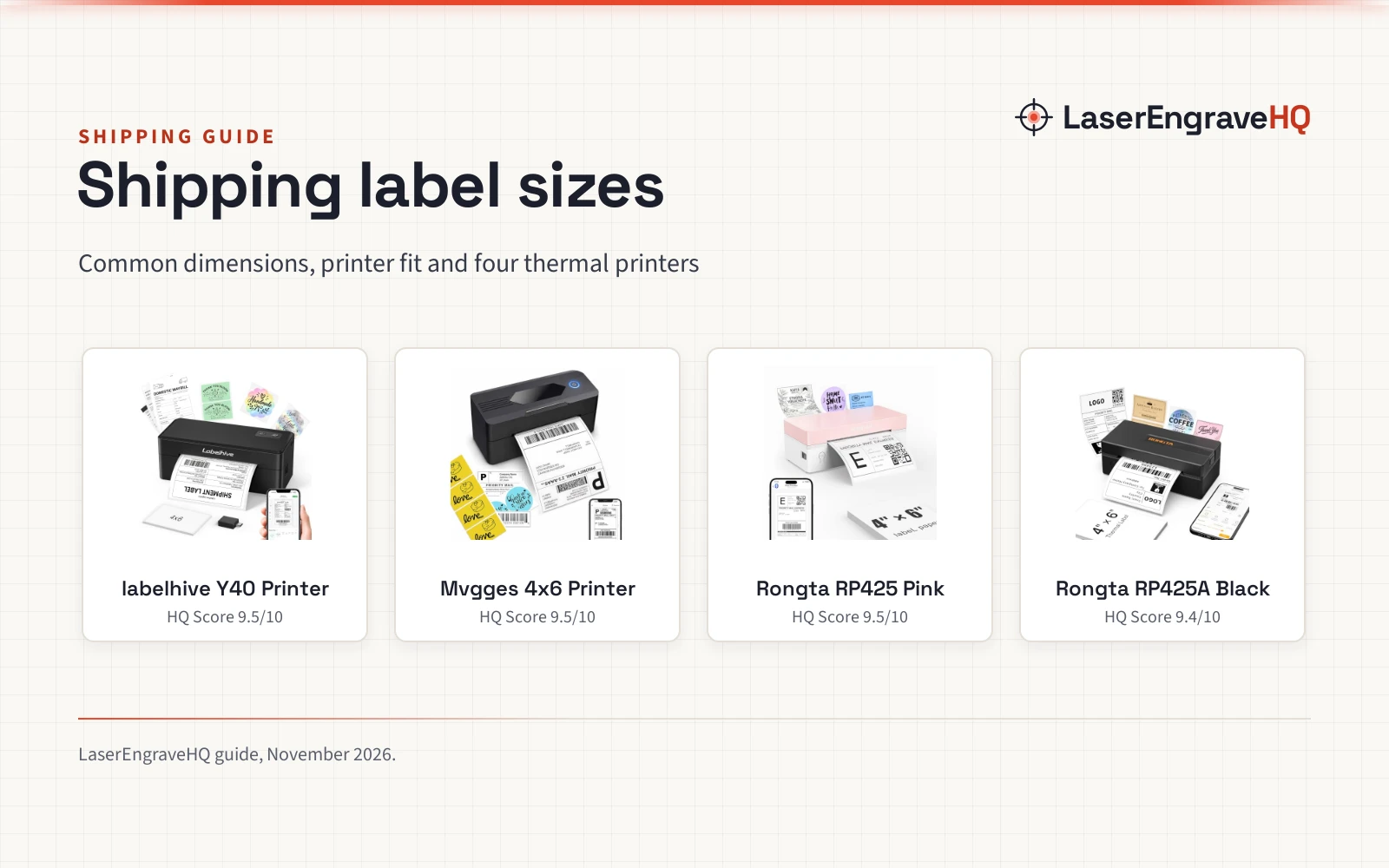
The common shipping label size is 4×6, and that size fits the address, barcode and service details on a single slip without crowding. The labelhive Bluetooth Thermal Shipping Label Printer supports thermal labels from 1.57 inches to 4.41 inches wide, including 4×6, 4×4, 4×2 and 2×1 sizes as well as custom-size labels, and it works with roll and fanfold thermal labels. A 4×6 label suits a standard parcel, while smaller sizes suit return labels, address labels, barcode labels and product labels. Check the shipping label size guide for the size that fits a parcel, and the best 4×6 thermal label printer guide for printers built around that size.
Size matters because a label that is too small crowds the barcode, and a barcode that is crowded may not scan. A label that is too large for a small parcel can wrap around an edge, and a wrapped barcode may not scan either. Match the label to the parcel: a large box takes a 4×6 label with room to spare, while a small mailer may take a smaller label that still leaves the barcode flat and clear. Keep the label flat, keep the barcode clear, and keep the address facing outward so the carrier can read it at a glance.
How to print a shipping label
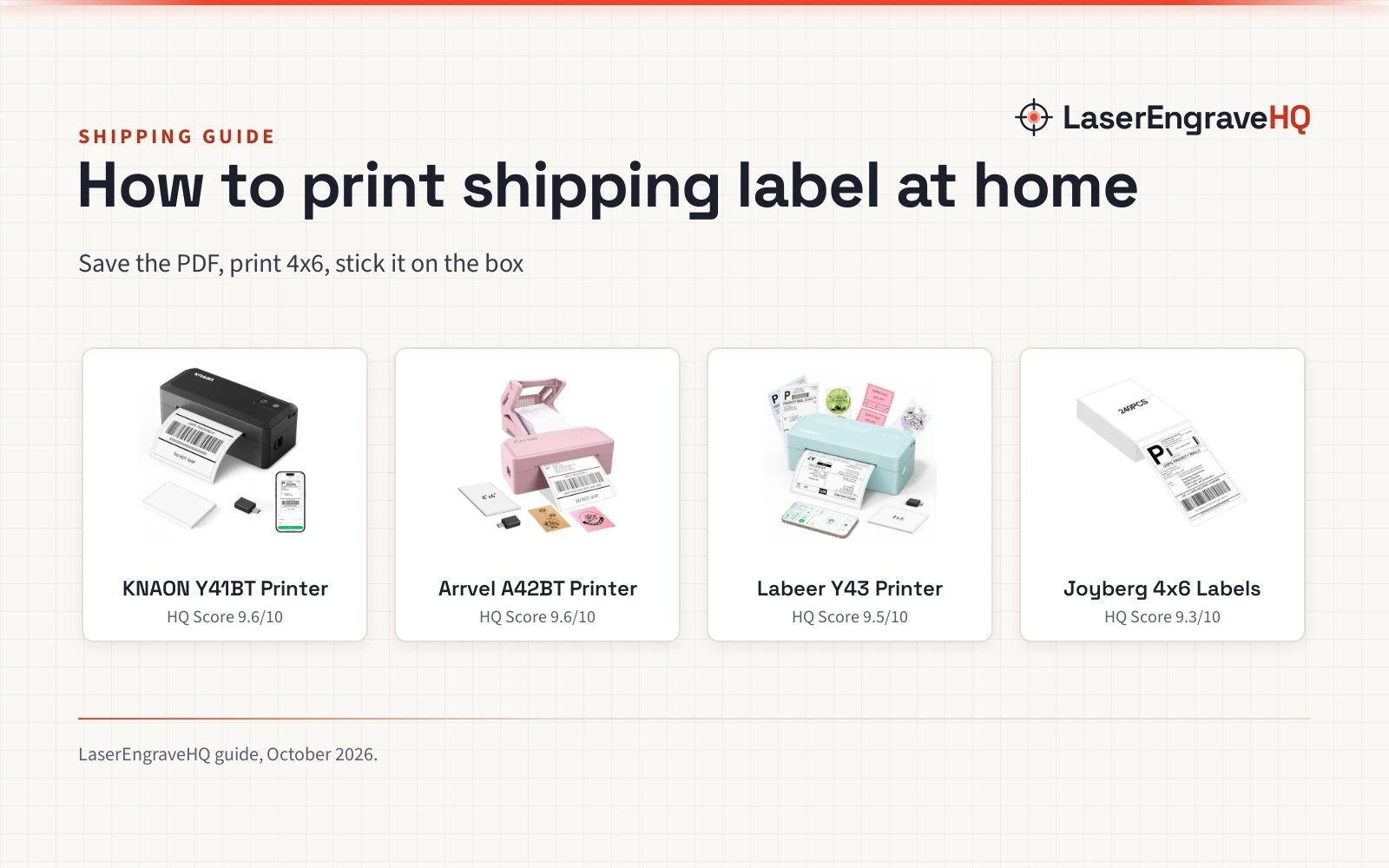
Printing a shipping label starts with the label file. A marketplace or carrier gives the label as a PDF when an order is ready to ship, and that PDF holds the address, barcode and service details. Download the PDF, open it on a phone or computer, and send it to a printer that handles label stock. A thermal printer is the usual choice for sellers who print labels often, because it prints without ink, toner or ribbons.
The labelhive printer is a 203 DPI direct thermal label printer, and it produces clear, scannable barcodes and text without ink, toner or ribbons. It prints wirelessly from iPhone and Android devices through the FlashLabel Pro app, or connects to a Windows computer by Bluetooth, and it connects to Windows through USB or Bluetooth, and uses USB with macOS, ChromeOS and Linux. Automatic label gap detection and calibration help keep each label properly positioned, while paper-out and jam detection, pause and resume and print-job cancellation help with batch printing. The how to print shipping label guide walks through the same steps in detail, and the best shipping label printer guide compares printers for small business use.
- Get the label file: download the shipping label as a PDF from the marketplace or carrier.
- Check the address: read the recipient address on the PDF before printing, and correct any error at the source.
- Load the right stock: load 4×6 thermal labels, or the size the label file uses, in the printer.
- Print and check: print the label, check that the address reads clearly and the barcode looks sharp, then stick the label flat on the parcel.
- Keep a copy: keep the tracking number from the label so the parcel can be followed after it leaves.
Common mistakes to avoid
- Printing a label on plain paper and taping over the barcode, which can reflect light and keep it from scanning.
- Sticking a label across a box edge or a seam, which can crease the barcode and make it unreadable.
- Using a label size that crowds the address or the barcode, so the carrier has to guess at the details.
- Printing with low contrast or a smudged print head, which can leave the barcode faint and hard to scan.
- Reusing a label from an old parcel, which can send a new parcel to the wrong address.
- Forgetting to check the recipient address before printing, which can send a parcel to the wrong door.
Most of these mistakes come from rushing the packing step. Slow down at the label, check the address and the barcode, and stick the label flat on the largest face of the parcel. A clean label is a simple safeguard against a lost parcel.
The short version
- A shipping label tells the carrier where a parcel goes, who sent it, and how it should travel.
- The barcode on the label holds the tracking number, and the carrier scans it at points along its route.
- The common size is 4×6, with smaller sizes for return labels, address labels and product labels.
- A thermal printer prints labels without ink, toner or ribbons, and the labelhive printer prints at 203 DPI.
- Check the address and the barcode before sticking the label flat on the parcel.
FAQ: lasers and CNC
What size is a shipping label?
The common size is 4×6. The labelhive printer supports thermal labels from 1.57 inches to 4.41 inches wide, including 4×6, 4×4, 4×2 and 2×1 sizes, and it works with roll and fanfold thermal labels.
Can I print a shipping label with a thermal printer?
Yes. A direct thermal printer prints labels without ink, toner or ribbons, and the labelhive printer produces clear, scannable barcodes and text at 203 DPI. It is built for 4×6 shipping labels, return labels, address labels, barcode labels and product labels.
What do I need to print a shipping label?
A label file as a PDF, a printer that handles label stock, and labels in the right size. The labelhive printer connects through Bluetooth or USB, prints from iPhone and Android through the FlashLabel Pro app, and works with Windows, macOS, ChromeOS and Linux.
Do shipping labels need a barcode?
Yes, in practice. The barcode holds the tracking number, and the carrier scans it to sort, route and deliver the parcel. A labelhive printer at 203 DPI produces barcodes that are clear and scannable, and a sharp barcode is what keeps a parcel moving.
Can I print a shipping label from a phone?
Yes. The labelhive printer prints wirelessly from iPhone and Android devices through the FlashLabel Pro app, using Bluetooth. Download the label as a PDF, open it in the app, and print it on 4×6 thermal labels.
Related: the selling and packaging hub, best shipping label printer and best thermal label printer for small business. Also see best poly mailers.